
A dock can have two HDMI sockets and still fail to give your laptop two independent screens. The useful question is whether your exact laptop, operating system, dock, cables and monitors support the same arrangement.
For a freelance workspace, getting this right avoids buying a second adapter to repair the first purchase. Start with a short compatibility check before comparing prices. This guide uses manufacturer documentation; it does not claim hands-on testing or recommend a particular product.
1. Write down the display arrangement you actually need
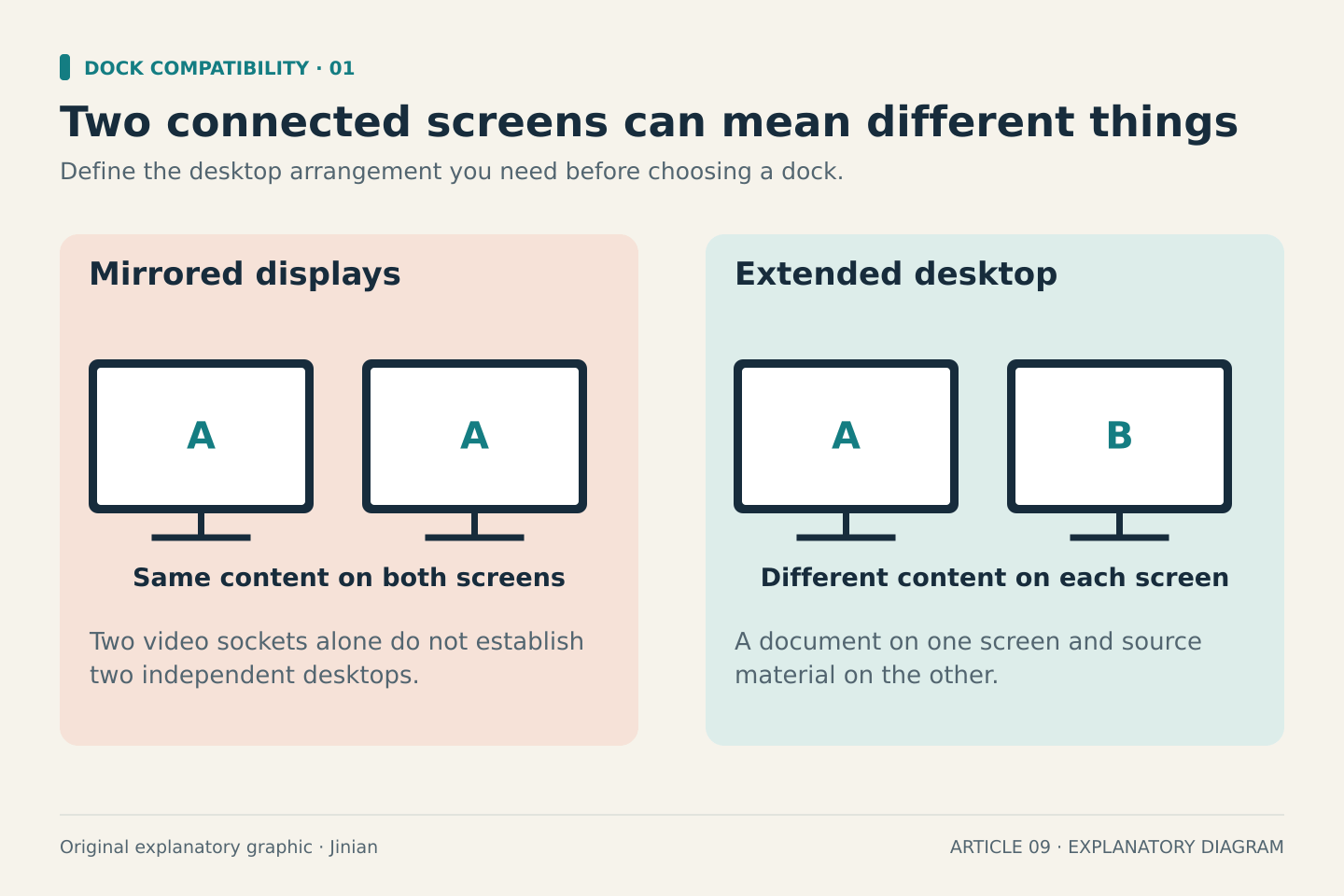
“Dual monitor” can mean several things. Decide whether you want two external screens showing different content, the same image repeated, or one external screen plus the laptop display.
For example, an editor might want a document on one external monitor and source material on another. That requires an extended desktop. A product listing that mentions two video outputs without explaining extended-display support leaves an important question unanswered.
Make a target specification:
- Laptop: exact model, chip or processor, and operating system
- External monitor one: model, resolution and refresh rate
- External monitor two: model, resolution and refresh rate
- Laptop screen: open and active, or closed
- Desk connection: one cable preferred, or two acceptable
The final point matters. If two direct connections already meet your needs, a dock is a convenience decision rather than a requirement.
2. Check what the laptop’s USB-C port supports
USB-C describes the connector shape. The laptop’s specifications tell you what travels through it. Look for DisplayPort Alternate Mode, Thunderbolt, and the documented display capabilities of that particular port.
Dell’s docking-station guide warns that not every USB-C port carries video. Its guidance also distinguishes USB-C video docks from universal docks that use DisplayLink software.
Read the laptop manual instead of relying only on a port photograph. Icons can help you locate a port, but a written specification is better evidence for an expensive accessory decision.
Intel describes Thunderbolt 4 as supporting dual 4K displays. That capability is useful context, but you still need to check the computer’s display limit and the dock’s supported configuration. A connector label alone does not settle the entire setup.
3. Check the computer’s own display limit
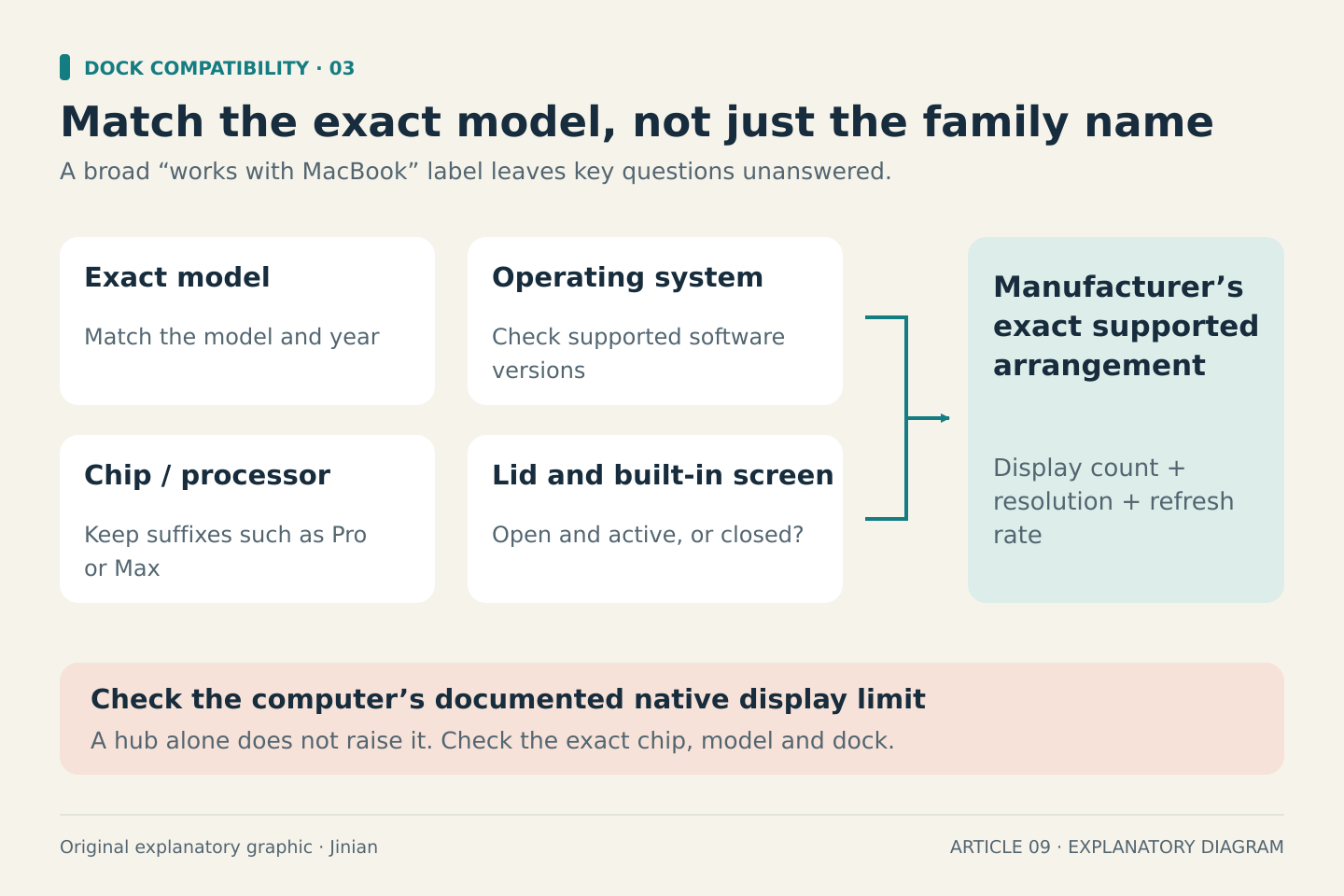
This is especially important with Macs. “Works with MacBook Air” is too broad because different chips support different arrangements.
Apple’s instructions for MacBook Air and MacBook Pro with the base M3 chip allow two external displays with the laptop lid closed, subject to the listed software, power and input-device requirements. Opening the lid disconnects or darkens the secondary external display in that arrangement.
By comparison, Apple says MacBook Air with M4 supports two external displays alongside its built-in display, within the specified resolution and refresh-rate combinations. The same page covers newer models; choose the section matching your machine.
Apple also states that a supported hub does not increase the computer’s maximum display count. Check the exact chip name, including suffixes such as Pro or Max, rather than applying a rule from a different model.
4. Check how the dock produces its two outputs
Some docks use DisplayPort Multi-Stream Transport, or MST, to divide a connection into multiple display streams. Operating-system support matters here.
Dell’s Mac compatibility guidance for named Thunderbolt docks explains a common trap: two screens connected through certain DisplayPort-derived outputs can mirror each other on macOS. Its supported extended-desktop arrangements use the dock’s Thunderbolt outputs, or a specified combination of Thunderbolt and another video output.
Those instructions apply to the dock models listed in that article. Do not copy a wiring diagram from a visually similar product. Check the exact dock manual and its Mac-specific notes.
DisplayLink docks are a separate option involving USB graphics software. Dell says its universal models require that software to drive monitors. If you consider one, verify operating-system support, required permissions and any restrictions relevant to your applications. It should be a deliberate choice.
5. Check resolution, cables and charging separately
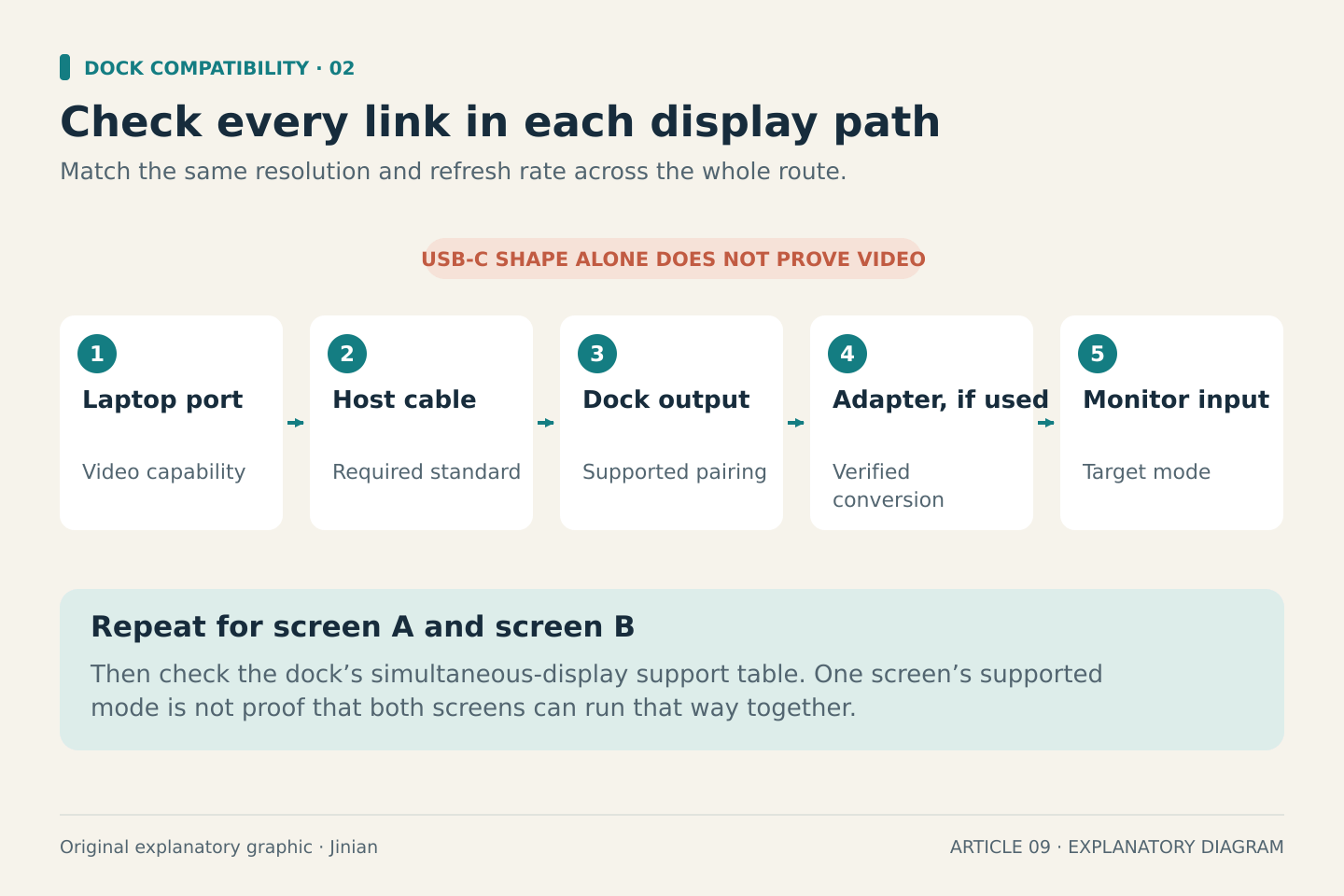
A listing that promises “4K” may refer to one monitor, a particular refresh rate, or a particular host connection. Find the dock’s display-support table and match the simultaneous arrangement you want.
Write the complete path for each screen: laptop port, dock host cable, dock output, adapter if needed, and monitor input. Check every component against the target resolution and refresh rate. Avoid adding an unverified adapter halfway through an otherwise documented setup.
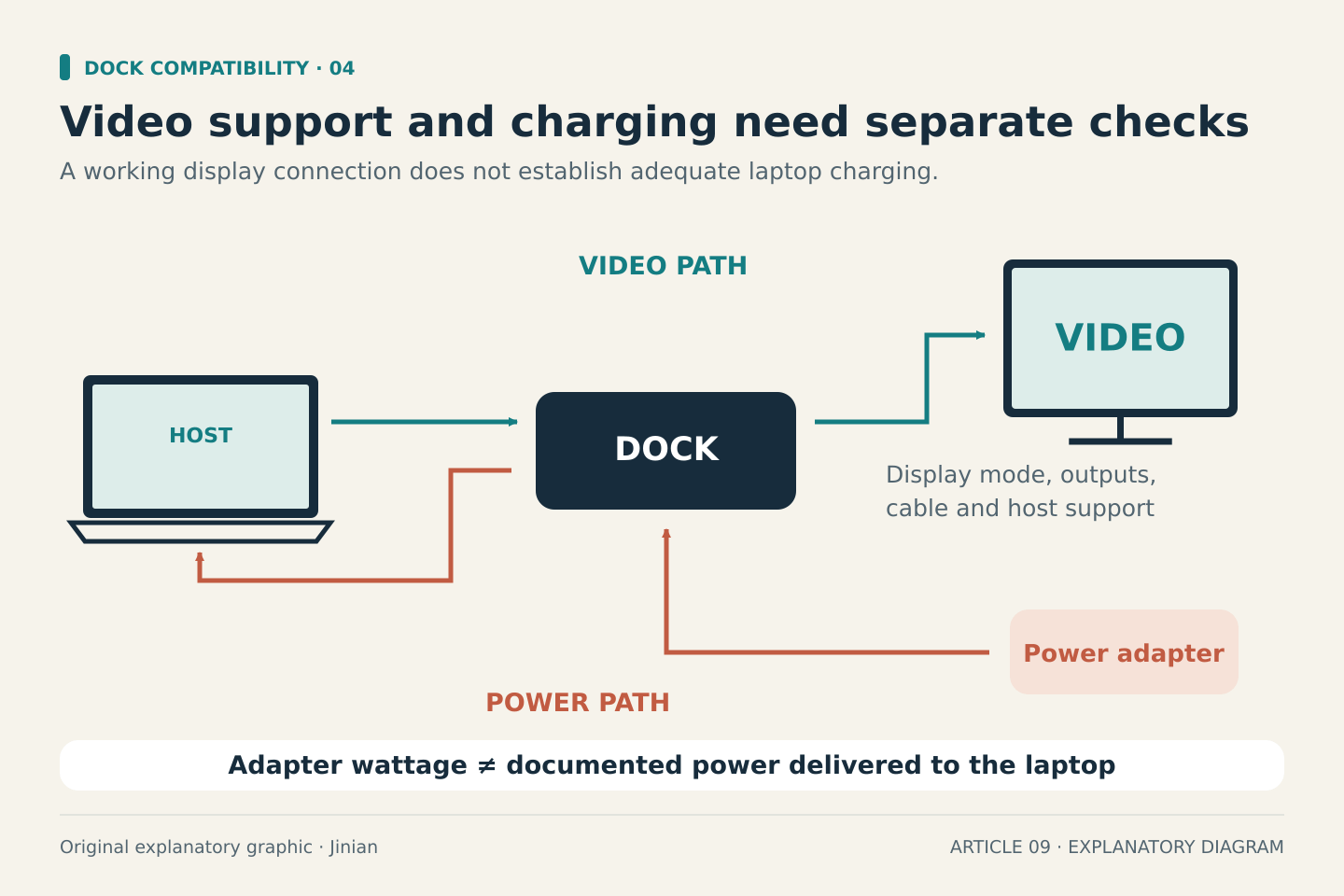
Then check charging. The dock’s power-adapter rating and the power it supplies to your laptop are different specifications. Compare the documented host power delivery with your laptop manufacturer’s requirements. An adequate display connection does not automatically establish adequate charging.
A purchase checklist you can send to a seller
Ask: “Will this exact dock provide two extended displays at these resolutions and refresh rates on this laptop and operating system, with the laptop screen active? Which ports and cables must I use?”
Save the answer alongside the manufacturer’s compatibility page. Confirm the return conditions before buying.
If you already own the equipment, test each monitor directly first, then follow the documented dock wiring. Change one connection at a time. This makes it easier to distinguish a cable problem from a model limit, rather than buying accessories by trial and error.
Manufacturer sources accessed October 1, 2026. Compatibility can depend on firmware and operating-system versions; no hardware was physically tested for this guide.