
A client sends a product list. The code 00123 becomes 123, and a long reference number appears in scientific notation. The spreadsheet still looks tidy, so the problem may remain hidden until an upload or lookup fails.
Treat identifiers as text before the spreadsheet interprets them. Keep an untouched source file, import into a separate working copy, and compare a few deliberately awkward values before editing. This routine protects data accuracy; it is not a guarantee that an untrusted file is safe to open.
Decide which columns are identifiers
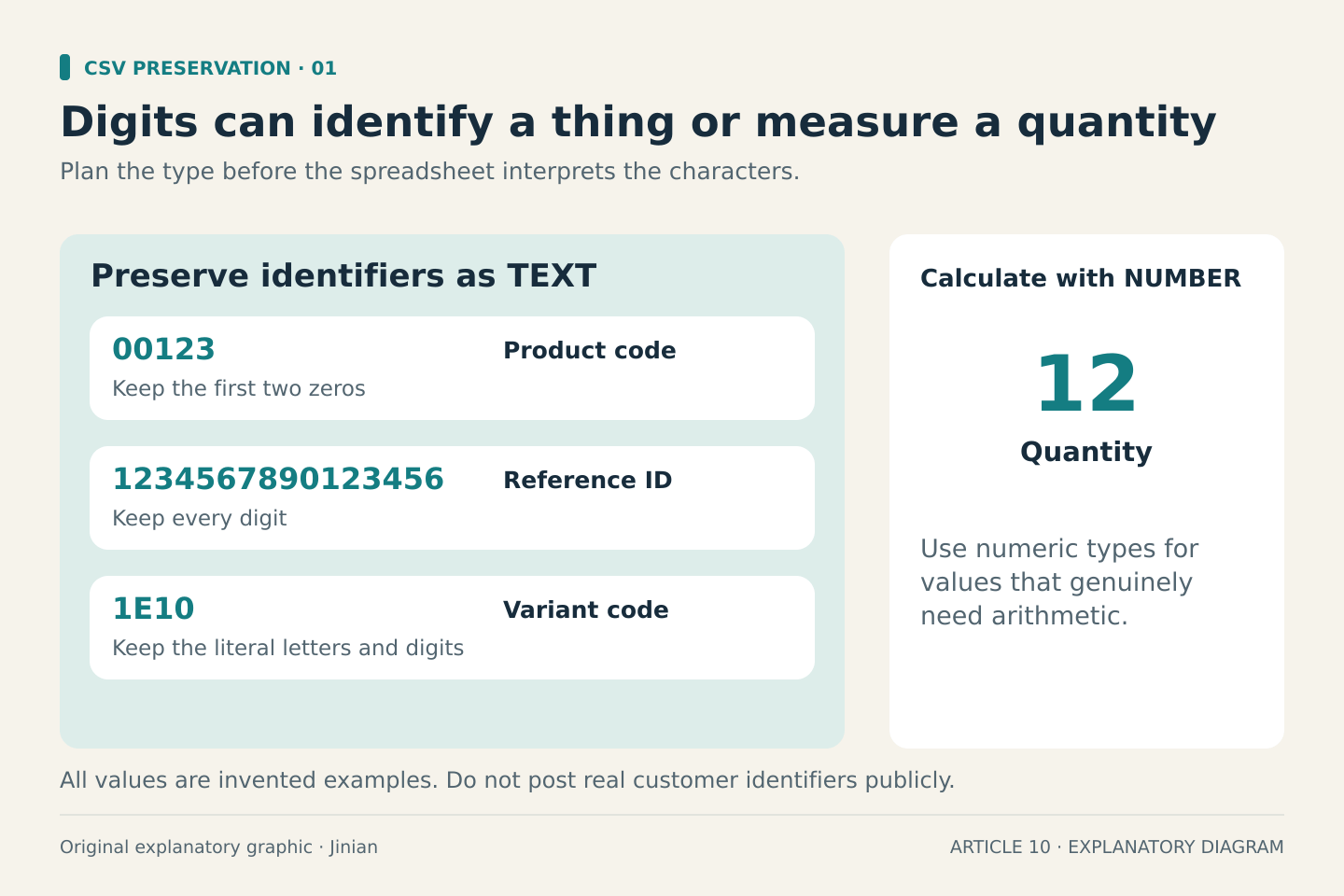
Digits do not always represent quantities. Product codes, postal codes and reference IDs identify things. Their exact characters matter, including leading zeros. Prices and quantities usually need numeric types for calculation.
Make a small import plan before opening the file:
| Column | Intended type | Example to preserve |
|---|---|---|
| Product code | Text | 00123 |
| Reference ID | Text | 1234567890123456 |
| Variant code | Text | 1E10 |
| Quantity | Number | 12 |
These are invented sample values. Never use real customer identifiers when asking for help in a public forum.
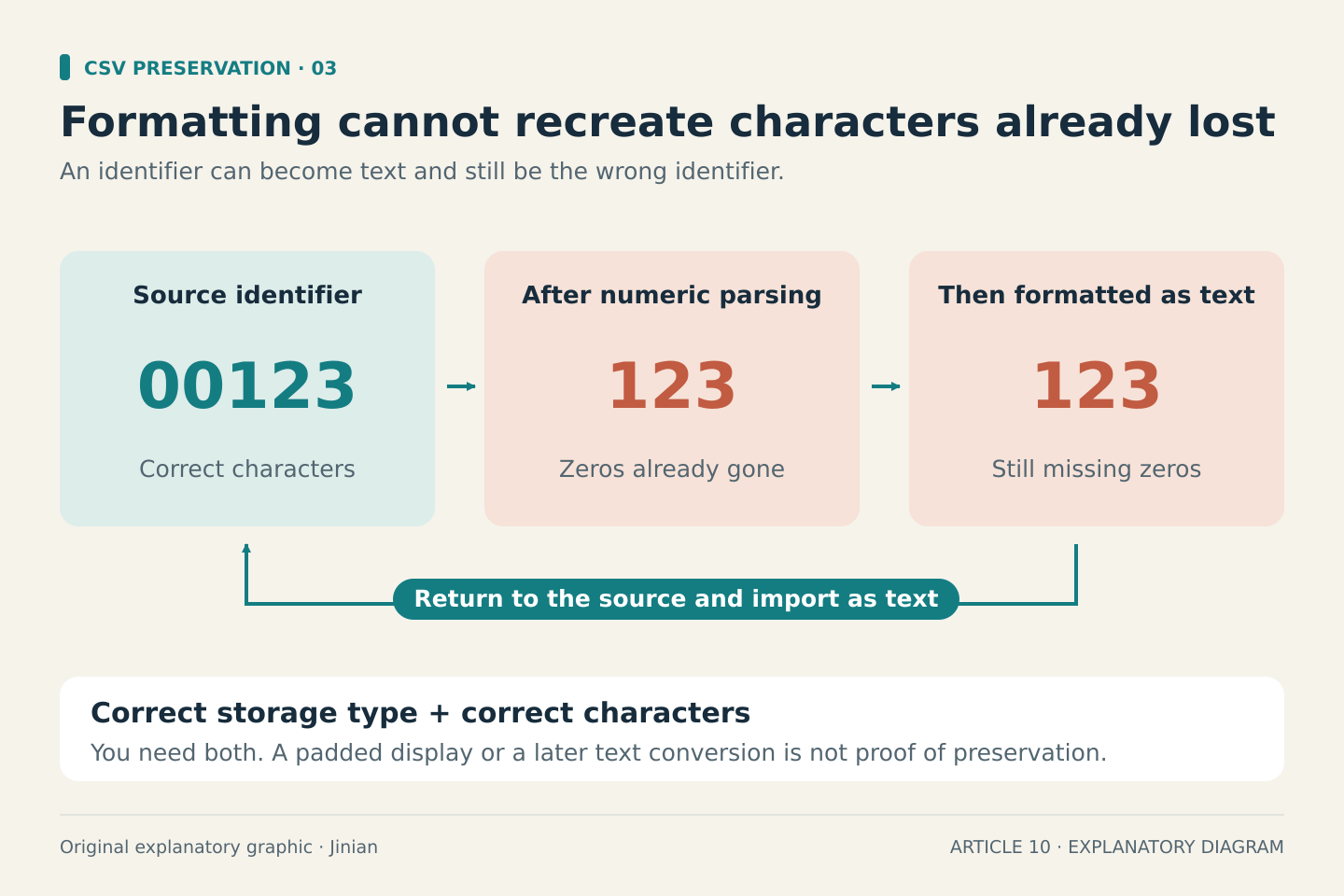
Microsoft documents Excel’s automatic conversions, including removing leading zeros, interpreting some strings as dates, and limiting numeric precision to 15 digits. Formatting an already-altered value as text cannot recreate missing characters.
Preserve the original CSV
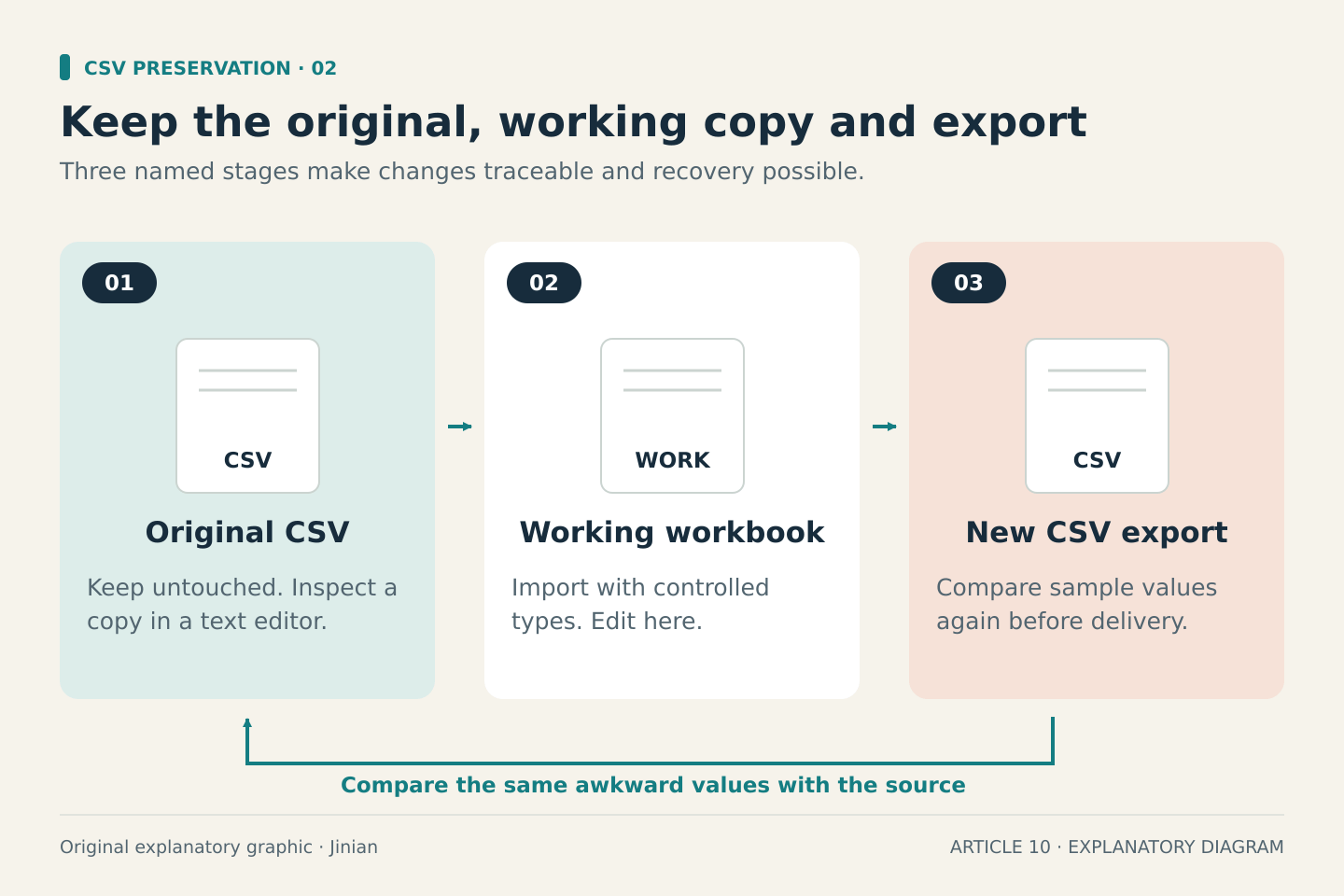
Save the download separately and work from a copy. If you need to inspect a suspicious value, open the copy in a plain-text editor rather than immediately resaving it through a spreadsheet.
Look for the header, delimiter and a few complete rows. CSV files commonly use commas, but other separators exist. A name containing a comma may be enclosed in quotation marks; do not split every comma manually and assume the result is correct.
Microsoft’s text-import documentation explains that opening a CSV directly uses Excel’s default interpretation settings. Controlled import gives you more opportunity to choose the types.
In Excel, set text types before loading
In a desktop Excel version with Power Query, start from Data → From Text/CSV. Select the original file and review the delimiter and character encoding. Choose Transform Data when you need to control column types.
Where the import dialog offers data-type detection, choose the option that does not detect types. Microsoft’s Text/CSV connector documentation says this leaves columns as text. Then assign numeric types only to columns that genuinely need arithmetic.
If a query already contains an automatic Changed Type step, inspect it before proceeding. Remove or revise the conversion that changes your identifier columns, and confirm the original strings are restored from the source. Adding a text-conversion step after zeros have disappeared will not repair them.
Microsoft explains how automatic Power Query type detection adds conversion steps. Check the preview, then load into a new worksheet and retain a workbook copy. Menu wording and available import features differ between Excel versions.
If using the legacy Text Import Wizard, select the identifier columns and choose Text in the column-format step before finishing.
In Google Sheets, import into a separate sheet
Use File → Import, choose your CSV and select a new spreadsheet or new sheet rather than replacing working data. Google’s official import guide describes the destination and separator choices.
Review the conversion controls before importing. If the dialog presents Convert text to numbers, dates, and formulas, clear that option for the preservation-first copy. Then check the imported identifiers immediately. If that control is unavailable or the sample changes, stop and use a text-preserving import route rather than continuing with damaged data.
For an automated workflow, Google documents a precise alternative: the Sheets API’s RAW input option stores supplied values without parsing. Identifiers must be supplied as strings; a number that already lost zeros elsewhere cannot be repaired by RAW.
Keep quantities and prices separate from identifiers when converting the working copy. Also check the spreadsheet’s locale settings, which affect default date, number and currency formatting.
Run a five-value check
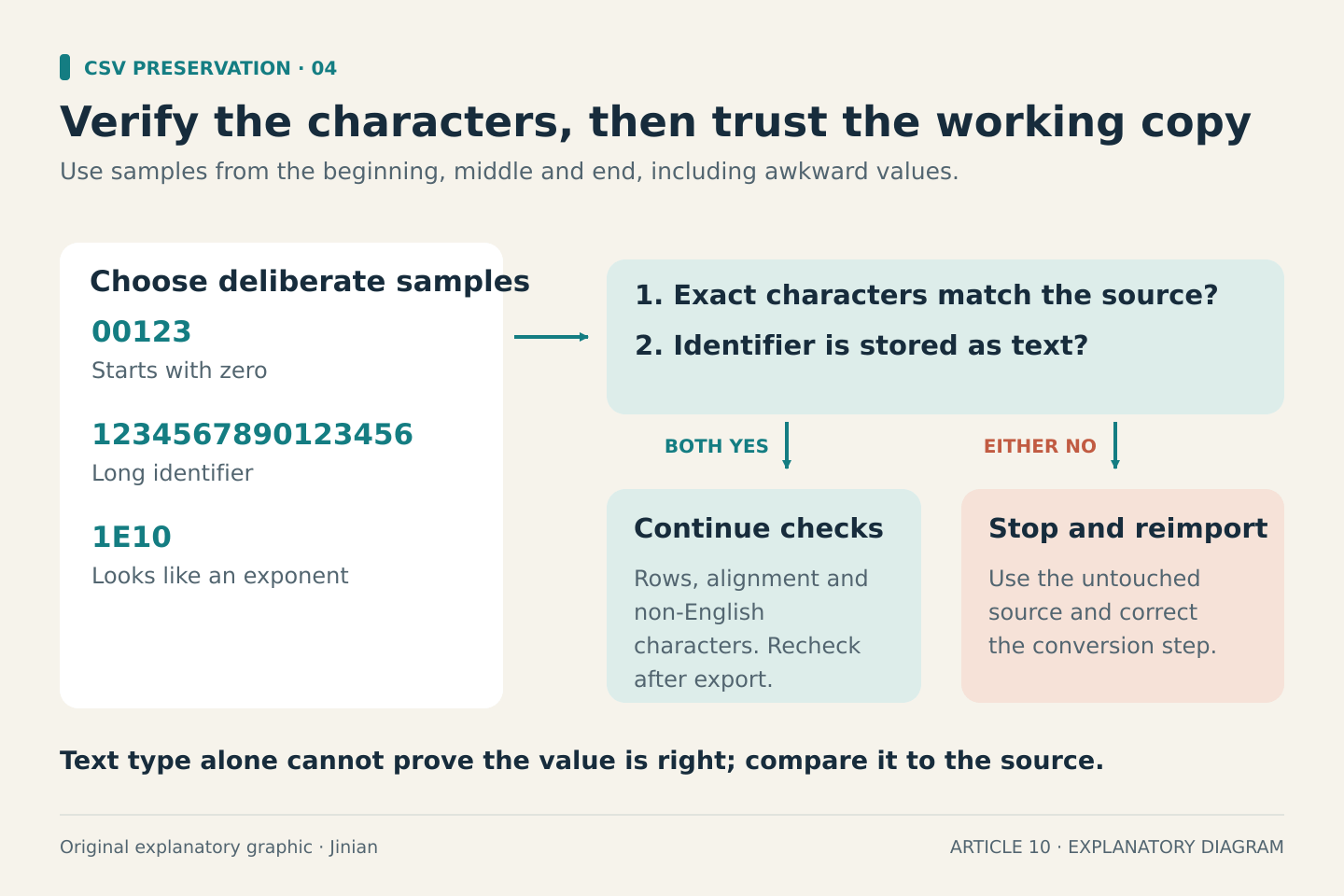
Choose samples from the beginning, middle and end of the file, including the longest identifier and one beginning with zero. Check:
- The full character sequence matches the source.
- The identifier is stored as text.
- No code became a date or exponent.
- Row counts and column alignment are sensible.
- Non-English characters survived the import.
In Sheets, =ISTEXT(A2) checks whether a value is text, while =EXACT(A2,"00123") checks that illustrative value’s characters. Google documents ISTEXT and EXACT. Text type alone does not establish that the contents are correct.
Check the export too
A custom display format can make a number look padded with zeros, but appearance is weaker evidence than a correctly stored identifier. If digits were lost, return to the original export. Do not guess how many zeros to add unless a documented fixed-width rule establishes the answer.
After editing, export a new CSV and inspect the same sample values in a text editor. If the receiving system offers a preview, check it before committing the upload. Keep the original, working workbook and final export clearly named so you can trace what changed.
Sources accessed October 1, 2026. Procedures are documentation-based; no live Excel or Google Sheets import was tested for this article.